 DravyaOS
Every bill has the same shape: find the medicine, pick the lot, set the quantity, take the money. A mouse makes you aim at each of those. A keyboard lets your hands stay where they are. Counters that bill hundreds a day know that the saving is not seconds per bill but a shorter queue by evening.
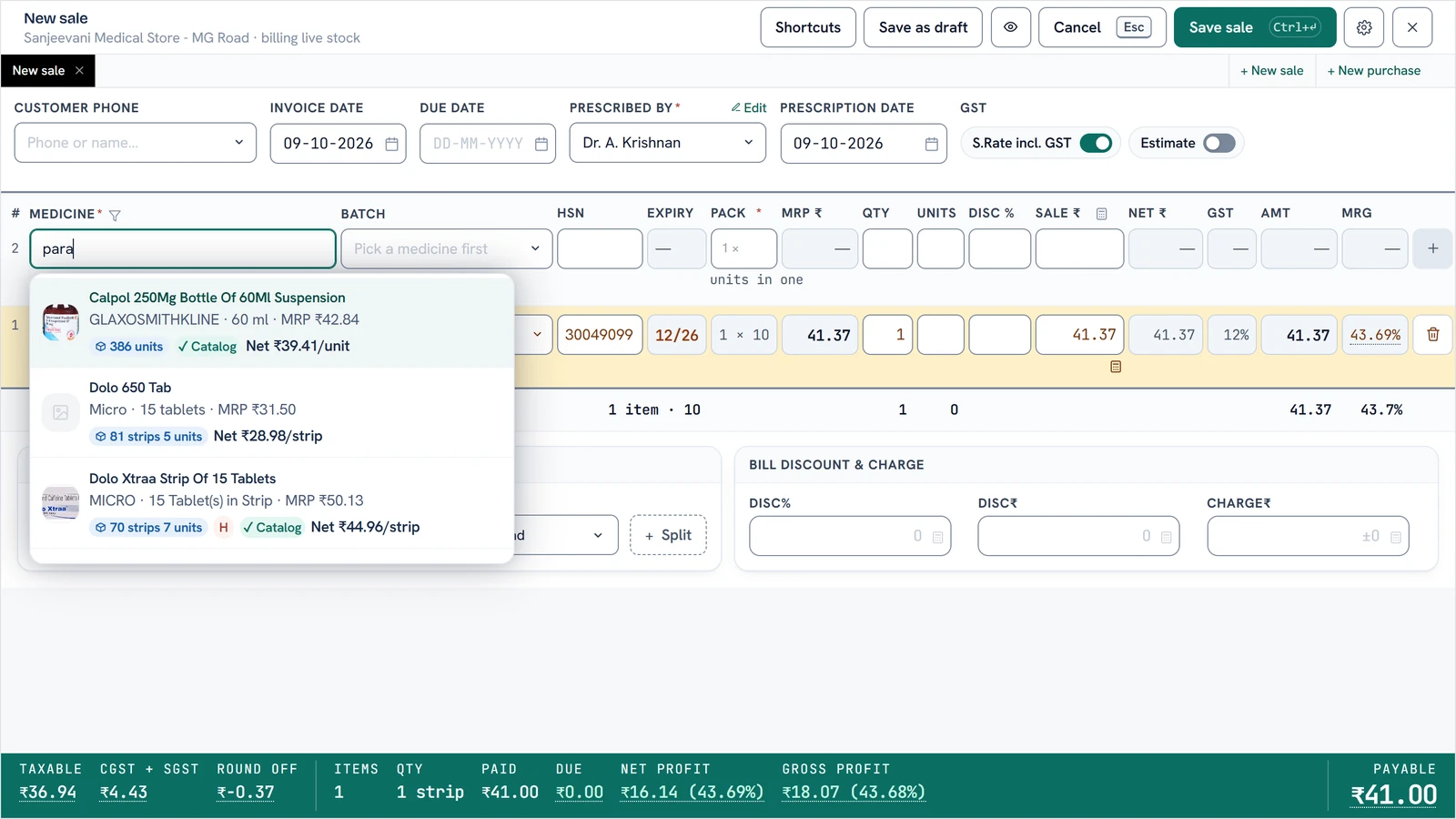
Start with these five
- Ctrl+N starts a new sale from any screen, even mid-typing and beside a bill already open. Ctrl+Shift+N starts a distributor's retail bill, and Ctrl+Shift+P a new purchase.
- F3 adds a new entry on whichever list you are on: Doctors, Indents, Orders, Sale Returns, Stock Audit, Stock Transfers and more.
- Ctrl+K opens the command palette. Type a few letters of any screen or action and jump.
- Ctrl+Enter saves the bill.
- Esc backs out one level, and returns to Home from a screen.
The function-key launcher goes to the big screens: F1 Inventory, F2 Sales, F3 Purchases, F4 Reports. Hints sit on the controls, and a per-screen key map is one keypress away.
While you are on a bill
These work wherever you last clicked on the bill, so a stray click on a line doesn't switch them off:
- F5 opens this customer's history (on a purchase receipt, the supplier's).
- F6 or Alt+A shows substitutes for the medicine, for when the exact brand is out.
- F7 opens the rate calculator. See pricing a medicine.
- F8 shows what this medicine last cost you, from this supplier when one is picked.
- Alt+S splits the tender, for a customer paying part cash, part UPI.
The regular's last rate
With a customer picked, the rate box shows a caption like last ₹170: what that customer was last charged for this medicine, restated for the lot in front of you. Alt+↓ in the box opens their last five distinct rates with dates and invoice numbers. Pick one with the arrows and Enter. It never opens by itself, so Enter still walks the line the way it always did. A regular who paid ₹170 last month should not be charged ₹185 today because someone forgot.
Fix a lot from the dropdown
Spot a wrong MRP or expiry in the batch list? Press F2 in the batch box to open the highlighted lot's edit form before you pick it. Alt+E does the same for the medicine itself. Correct it on the spot and carry on, rather than leaving the bill, fixing it, and starting again.
Several bills at once
Bills, receipts and returns open as tabs in one window, up to six. If a customer says "wait, one more thing" while another is waiting, open a new bill beside the half-typed one instead of discarding it.
- Ctrl+Tab and Ctrl+Shift+Tab switch tabs. Ctrl+T opens a blank one of the same kind.
- Alt+D lists saved drafts of that kind over the bill. Resume opens one as a tab.
- PgUp and PgDn, while editing a sale or receipt, step to the previous or next one in the list, so correcting a run of bills doesn't mean going back to the list for each.
A background tab's shortcuts stand down, so Ctrl+Enter only ever saves the document in front of you.
A power cut won't lose the bill
A new bill saves itself as a draft from its first line and updates whenever your typing pauses. After a power cut or crash the bill is waiting in the Drafts tab. Posting clears the draft in the same write as the invoice, so a posted bill can't be posted a second time. If another counter already billed it, Save refuses with a plain message. More on that in how two counters stay in step.
Keys the browser would have stolen
A counter PC runs inside a webview, which answers Chromium's Ctrl+R (reload), Ctrl+P (print) and Ctrl+F (find) whether the app wants it to or not. A biller who reached for Ctrl+R half-way through a bill used to lose it. The release build switches those off, and rebinds zoom (Ctrl+=, Ctrl+−, Ctrl+0) in the app, so the zoom level also survives a restart.
A week to learn it
- Day 1–2: only Ctrl+N, Ctrl+Enter and Esc.
- Day 3–4: add F5 and F8 so you check history before you quote.
- Day 5–7: add Alt+S, Alt+A and tabs.
The mouse still works all the time. The point is not to remove it but to stop needing it.
Try a day of billing without reaching for the mouse.
Download DravyaOS for Windows