 DravyaOS
The single biggest reason chemists stay on software they've outgrown is a quiet dread: "I'd have to re-type my entire inventory." You don't. A stock migration is a one-afternoon job if you do it in the right order — and the modern part, filling in sale and purchase rates for every item, can happen on its own.
Why the fear is overblown
You're not moving years of history — old bills, old receipts, old ledgers. Those stay searchable in the old system (keep it installed, or export a PDF backup). What you actually need on day one in the new software is much smaller: the list of medicines you currently stock, with enough detail to bill and reorder. That's a table, and tables move easily.
Step 1 — Export the item list you already have
Almost every pharmacy tool can export the item master to Excel or CSV. Look for a menu like Reports → Item List, Master → Export, or a "Stock report" you can save as a spreadsheet. If yours truly can't export, your printed current-stock report is a workable fallback — you'll retype, but only the columns that matter.
Step 2 — Keep only the columns that matter
Open the export and cut it down. For a clean start you really only need:
- Medicine name (as you'll search for it at the counter).
- Pack — strip of 10, bottle of 100 ml, and so on.
- HSN code and GST rate, if you have them stored.
- MRP, and purchase rate if it's handy.
- Manufacturer / distributor, optional but useful for reorder.
- Current quantity, if you want opening stock loaded too.
Delete discontinued items while you're here — a migration is a free spring clean. Don't obsess over batch numbers and expiry for dead-stock lines; you'll enter fresh batches naturally as new purchases come in.
Step 3 — Import, and let rates fill themselves in
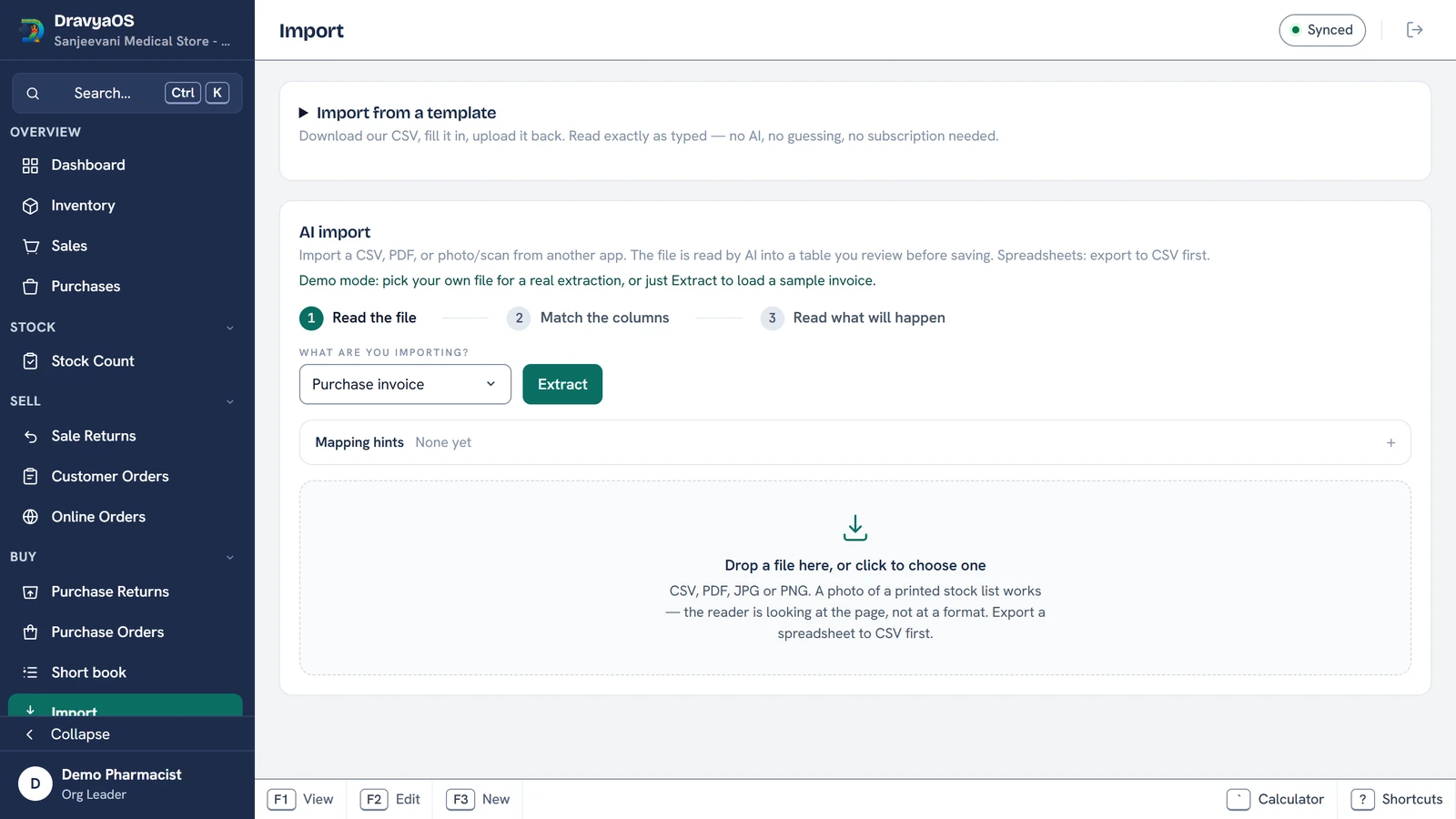
Bring the cleaned sheet into the new software's import tool. The tedious part used to be pricing: setting a sale rate and a purchase rate against every single line by hand. Good software now infers these — when imported stock carries an MRP or a landing cost, the app can seed each item's sale rate and purchase rate for you, so a freshly imported catalog is ready to bill rather than a list of blanks. You review and adjust the exceptions instead of typing hundreds of numbers.
Step 4 — Reconcile before you go live
Before your first real bill, do a quick sanity pass:
- Spot-check ten fast-movers — is the name searchable, the pack right, the MRP correct?
- Confirm GST rates landed (a blank rate prints a wrong bill).
- If you loaded opening quantities, match a few against the shelf.
- Print one test invoice and read every line.
Then bill for a day with the old system still available as a reference. By evening you'll trust the new one.
What about running two systems for a while?
You don't need to. Pick a clean cut-over date — ideally the start of a month or a slow day — and switch fully. Parallel-running two tills invites double-entry mistakes. Keep the old software installed read-only for looking up history; do all new billing in the new tool.
The offline advantage during a switch
Migrations often happen on a quiet afternoon with the shutter half-down and the internet flaky. Software that needs a live connection to import or bill picks the worst moment to stall. An offline-first tool imports from a local file and starts billing immediately, connection or not — which is exactly when you want zero surprises.
Doing it in DravyaOS
DravyaOS imports your item list from a spreadsheet and seeds each line's sale and purchase rates from the stock you bring in, so the catalog is billable the moment it lands — no per-item rate typing. It runs fully offline and has no invoice cap, so you can trial the whole migration on a copy of your data before committing.
Try the switch on a copy — import your stock, bill offline, no invoice cap.
Download DravyaOS for WindowsNext: weigh your options with our guide to the best free pharmacy billing software in India, or get your pricing right from day one with MRP, PTR, PTS & margins explained.